
Microsoft Teams
Microsoft Teams is the central hub for all your teamwork activities including seamless collaboration, chat, meetings, file sharing, and phone calls. Stay connected and productive wherever you are.
Microsoft Teams is the central hub for all your teamwork activities including seamless collaboration, chat, meetings, file sharing, and phone calls. Stay connected and productive wherever you are.
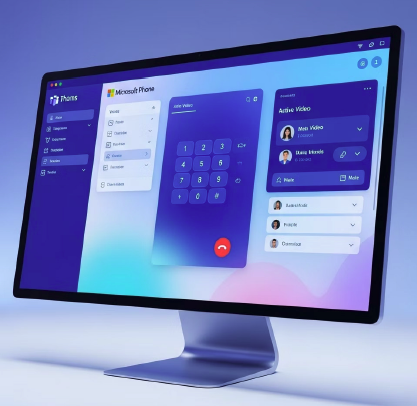
Lincoln University is transitioning faculty and staff to Microsoft Teams and Microsoft Teams-to-Teams calling. With this upgrade, you can make and receive phone calls directly from your computer or mobile device. This transition will enhance operational efficiency, maximize Lincoln University's investment in Microsoft technologies, and reduce redundant systems.
Our implementation of Teams Telephony allows you to make and receive calls using your university phone number directly from the Teams app on your computer, tablet, or smartphone.
Q1: How do I start using Teams?
To get started, there are several ways to use Teams. You can use teams on all your devices such as a mobile phone and other mobile devices including Apple Car Play and computer.
Q1: How do I make or answer a call on Teams?
You can start a call from the Calls tab, from a chat (turn a chat into a call), or by using the onscreen dial pad.
Q2: Can I call external phone numbers (landlines or mobile phones)?
Yes, you can call external phone numbers. You do not need to dial "9" or "1".
Q3: What calling features are available?
Call forwarding, merge calls, consult-then-transfer, and delegation (have someone answer/make calls on your behalf).
Q4: Can I manage calls across devices?
Yes, you can join or transfer a call to another device. Call history, contacts, and voicemail settings are synced across all devices.
Q5: How do I set up my voicemail?
Go to more settings from the bottom left corner or go to settings from the top left of Teams app. Click "Configure voicemail." Click "Record a greeting." You can "Record a greeting." You can create a text-to-speech greeting. You can create an out of office greeting. View in the video (minute 10:27).
Q6: How do I change my ringtone?
Go to More settings from the bottom left corner or go to settings from the top left of Teams app. Find "Ringtones" and click the dropdown arrow to select your ringtone.